How to Use Remini Professionally: The Complete Guide to AI-Powered Photo Enhancement! Remini has quietly become one of the most powerful tools in a modern creative’s arsenal. Whether you’re a photographer, content creator, social media manager, real estate agent, or eCommerce entrepreneur, knowing how to use Remini professionally can dramatically elevate the quality of your visual content — without needing advanced editing skills or expensive software.
This guide takes you beyond the basics. We’ll walk through what Remini is, how it works under the hood, and — most importantly — how to use it strategically and professionally across different industries and use cases.
What Is Remini? How to Use Remini Professionally?
Remini is an AI-powered photo and video enhancement application developed by Bending Spoons. Originally launched in 2019, it was designed to restore old, blurry, or low-resolution images using deep learning algorithms. Over time, Remini has evolved into a comprehensive visual enhancement platform with features that extend far beyond simple restoration.
At its core, Remini uses a class of AI model called a Generative Adversarial Network (GAN). The model has been trained on millions of image pairs — low-quality and high-quality — and learns to reconstruct fine details that appear to be lost. The result is that Remini can take a blurry, pixelated photo and output a sharp, detailed version that often looks strikingly real.
Remini is available on iOS, Android, and via web browser, making it accessible across virtually all workflows.
Setting Up Remini for Professional Use
Choosing the Right Plan
Remini operates on a freemium model. The free tier allows limited daily enhancements, which is suitable for occasional personal use. For professional use, however, you’ll want to subscribe to Remini Pro.
Remini Pro unlocks:
- Unlimited photo enhancements
- High-resolution output
- Batch processing capabilities
- Access to the full AI Photo and Video features
- Priority rendering speed
For businesses processing large volumes of imagery — such as real estate agencies, eCommerce stores, or photography studios — the monthly or annual Pro subscription is an essential investment that pays for itself quickly.
Understanding the Interface
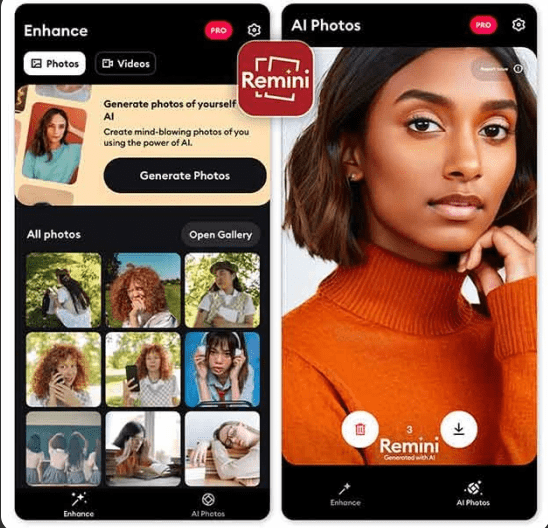
When you first open Remini, you’ll see a clean, minimal dashboard with several key tools:
- Enhance — The flagship feature for improving image sharpness and resolution
- AI Photo — Generate and style portraits using AI
- Video Enhance — Upscale and restore video footage
- Actions — Apply stylized filters and effects to photos
Familiarizing yourself with each of these sections before diving into client work will ensure you always choose the right tool for the task at hand.
The Enhance Feature: Professional Applications
The Enhance tool is the heart of Remini’s professional value. Here’s how to use it strategically:
Step 1: Choose the Right Source Image
The quality of your output depends significantly on your input. While Remini is impressive at restoration, it performs best when given:
- Images with recognizable subject matter (faces, landscapes, products)
- Photos that are blurry or pixelated but not completely distorted
- Files with at least minimal detail for the AI to extrapolate from
Pro tip: Avoid images with extreme digital noise or heavy compression artifacts as primary source material. If the original is extremely degraded, consider using multiple passes of enhancement.
Step 2: Upload and Select Enhancement Type
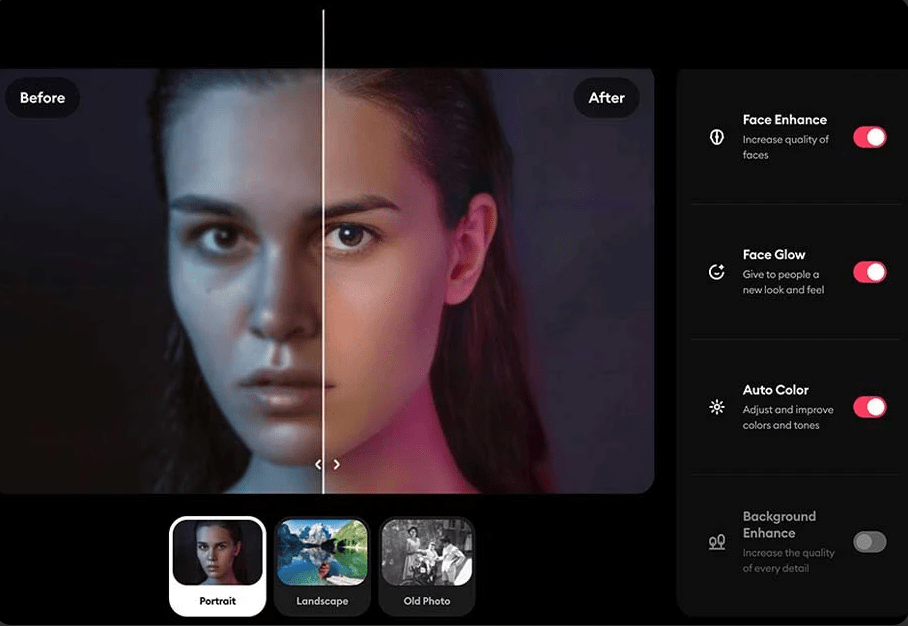
When you upload an image in the Enhance section, Remini allows you to choose the type of enhancement:
- General — Best for landscapes, architecture, and mixed scenes
- Face — Optimized for portraits and headshots
- Portrait — Focused on skin tones, facial details, and soft backgrounds
Always select the most appropriate enhancement type. Using the Face mode on a product photo, for example, may introduce unwanted skin-tone processing on non-human subjects.
Step 3: Preview and Compare
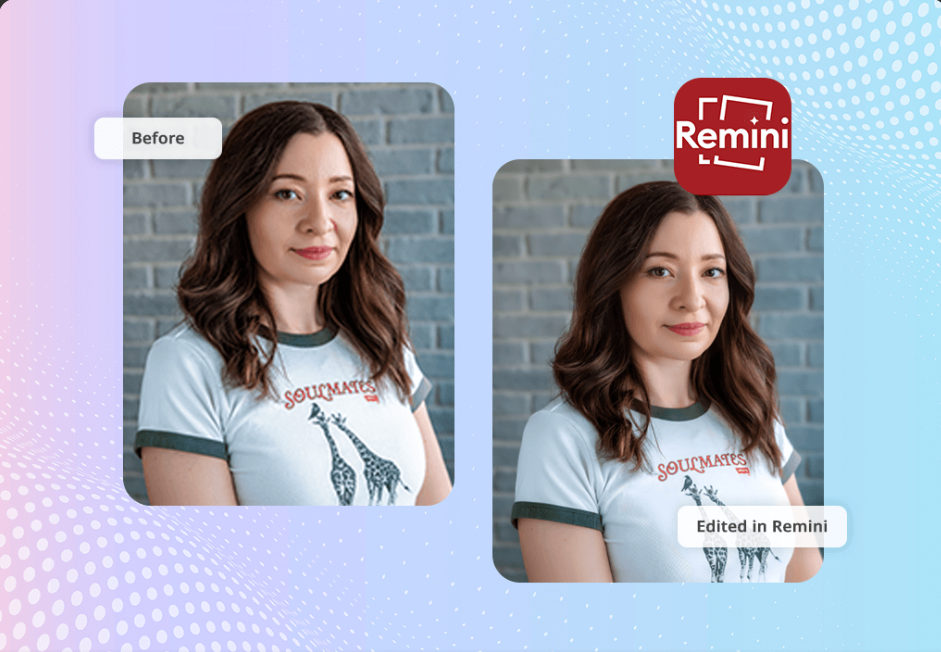
Remini provides a split-screen comparison of before and after. As a professional, always spend time on this comparison. Look for:
- Unnatural sharpening halos around edges
- Over-smoothed skin that loses natural texture
- Background distortions or artifacts introduced by the AI
If the result looks too processed, it may be better to use a lighter enhancement or retouch manually in another application afterward.
Step 4: Export at Maximum Quality
Always export at the highest resolution available. Under Pro settings, Remini outputs images at significantly higher dimensions than the free tier. Save in PNG format when quality is paramount (such as for print), and use JPEG for digital deliverables where file size matters.
| # | Benefits | Disadvantages |
|---|---|---|
| 1 | Saves Time — Remini AI enhancement reduces hours of manual retouching to just seconds | Over-Processing Risk — AI can over-smooth skin or introduce unnatural sharpening artifacts |
| 2 | Cost Effective — Eliminates the need for expensive editing software or professional retouchers | Subscription Cost — Pro plan is a recurring expense that may not suit freelancers on tight budgets |
| 3 | Easy to Use — No advanced editing skills required; beginners can produce professional results | Limited Control — Users cannot manually adjust enhancement intensity or fine-tune AI decisions |
| 4 | Restores Old Photos — Brings damaged, faded, or low-resolution historical images back to life | Cannot Fix Severely Damaged Images — Extremely corrupted or distorted photos yield poor results |
| 5 | Boosts Business Visuals — eCommerce, real estate, and marketing professionals get higher quality images fast | Privacy Concerns — Uploading client photos to a cloud-based AI app raises data privacy questions |
| 6 | Multi-Platform Access — Available on iOS, Android, and web for flexible professional workflows | Internet Dependent — Requires a stable internet connection; no offline processing available |
Using Remini for Portrait Photography
Portrait photography is where Remini truly shines. Professional photographers and social media managers can use Remini to:
Restore Old or Archival Portraits
Family photographers and archivists can use Remini to breathe new life into decades-old photographs. Grainy black-and-white images from the 1960s or faded color prints from the 1980s can be dramatically improved. The AI reconstructs facial features, adds sharpness to eyes, and recovers detail from washed-out areas.
Best practice: Scan the original physical photo at the highest resolution your scanner allows (at least 600 DPI, ideally 1200 DPI) before uploading to Remini. This gives the AI more data to work with and results in a far superior final output.
Enhance Client Headshots
Corporate photographers and LinkedIn profile creators frequently use Remini to sharpen headshots taken in suboptimal conditions — poor lighting, camera shake, or insufficient resolution. Running a headshot through Remini’s Face enhancement can recover eye sharpness and skin clarity that would otherwise require significant manual retouching in Lightroom or Photoshop.
Fix Smartphone Photos for Professional Delivery
Many clients now shoot content on smartphones. When the resolution doesn’t meet professional print standards, Remini can upscale these images to near-professional quality. This is particularly valuable for small businesses that can’t afford professional photographers but need high-quality content.
Remini for eCommerce and Product Photography
In eCommerce, image quality directly correlates with conversion rates. Blurry or low-resolution product images cause shoppers to lose confidence in a product. Remini offers a reliable way to rescue product photos.
Upscaling Product Images
If a supplier sends product images in low resolution (a common problem in dropshipping and wholesale businesses), Remini can upscale them to meet marketplace requirements. Amazon, Etsy, and Shopify all have minimum image size requirements, and Remini helps sellers meet those standards without needing to reshoot.
Enhancing Background Detail
When using the General enhancement mode on product images, Remini can also sharpen background details — helpful for lifestyle product shots where context and environment matter.
Workflow Integration
For eCommerce professionals processing hundreds of product photos, develop a consistent workflow:
- Bulk upload images to Remini in batches (Pro plan)
- Apply consistent enhancement settings across a product line
- Export and run a final quality check in Adobe Lightroom or Photoshop
- Deliver to the storefront or design team
This workflow can reduce photo retouching time by 40–60% while maintaining professional quality.
Remini for Real Estate Photography
Real estate is a visual industry. Listings with high-quality photos sell faster and command higher prices. Remini has become a valuable tool in real estate photography workflows.
Enhancing Exterior Shots
Exterior real estate photography is often affected by weather, lighting conditions, and equipment limitations. Remini’s General enhancement mode can sharpen architectural details — window frames, brickwork, roof lines — that give listings a more polished appearance.
Improving Interior Images
Interior shots frequently suffer from mixed lighting (natural + artificial) and wide-angle distortion. While Remini doesn’t correct lens distortion, it can significantly sharpen details like flooring textures, countertop materials, and cabinetry — all details that buyers scrutinize closely.
Twilight and Low-Light Enhancements
Twilight photography is a premium real estate service, but many agents shoot at dusk without professional cameras. Running these shots through Remini can improve sky gradient detail and reduce noise, making the result look more intentionally captured.

Using Remini’s AI Photo Feature Professionally
The AI Photo feature goes beyond enhancement — it allows you to generate styled portraits and creative imagery using AI. Professionally, this opens several interesting doors.
Creating Professional Profile Photos
The AI Photo feature can generate studio-quality profile photos from casual snapshots. For professionals, coaches, and entrepreneurs who need polished profile imagery but can’t invest in a studio session, this feature offers a cost-effective alternative.
To achieve the most professional results:
- Upload a well-lit source photo with a clear face
- Choose a neutral or professional background style
- Select lighting styles that mimic studio setups (softbox, rembrandt, etc.)
- Generate multiple versions and select the most natural-looking result
Brand Consistency for Social Media
Marketing teams use Remini’s AI Photo feature to create consistent, on-brand portraits for team pages, LinkedIn, and marketing materials. When a new team member joins and a professional shoot isn’t immediately possible, Remini can produce a credible placeholder that maintains brand consistency.
Generating Creative Content
Content creators and visual artists can use AI Photo as a starting point for creative campaigns. While the output should be considered a creative tool rather than a replacement for original photography, it can serve as concept art, mood board material, or social media filler content.
Remini for Video Enhancement
The Video Enhance feature is one of Remini’s most powerful professional tools and is often underutilized.
Upscaling Old Video Footage
Videographers, documentary filmmakers, and archivists working with historical footage benefit enormously from Remini’s video enhancement. Footage shot on older cameras or digitized from VHS tapes can be upscaled to HD or near-HD quality, preserving historical content in watchable formats.
Improving Social Media Video Content
Short-form video creators who capture footage on older smartphones or in poor lighting conditions can run clips through Remini to improve clarity before posting to Instagram Reels, TikTok, or YouTube Shorts.
Best practice: Keep video clips under 30 seconds when using the free or standard Pro plan, as longer videos require more rendering time. For feature-length or long-form content, consider enterprise-level solutions or process the video in segments.
Enhancing Client Testimonial Videos
Businesses that collect customer testimonial videos frequently receive footage shot on consumers’ smartphones in uncontrolled environments. Remini can improve the perceived quality of these videos — sharpening faces, reducing grain — making them more suitable for marketing campaigns.
Professional Best Practices for Using Remini
To use Remini at the highest professional level, observe these best practices:
1. Never Rely Solely on Remini
Remini is a powerful enhancement tool, but it should be part of a broader editing workflow, not a replacement for one. Always combine Remini’s output with adjustments in Lightroom (for color grading and exposure), Photoshop (for manual retouching), or Canva (for design and layout). The best results come from using the right tool for each stage of the process.
2. Communicate Transparently with Clients
If you’re using AI enhancement on client images, be transparent about this — especially in photography contracts. Many clients are comfortable with AI tools that improve image quality, but appreciate honesty. For editorial or journalistic contexts, AI enhancement may be prohibited by publication guidelines.
3. Quality Check Every Output
The AI doesn’t always get it right. Common issues include:
- Eye artifacts — Eyes may appear slightly unnatural or asymmetrical
- Background hallucinations — The AI may introduce detail that wasn’t in the original
- Skin over-smoothing — Fine skin texture can be lost, creating a plastic look
Always examine the output at 100% zoom before delivering to clients or publishing.
4. Develop a Consistent Naming and Storage System
When processing large batches of images, a clear file naming system prevents confusion between originals and enhanced versions. A simple convention like filename_original.jpg vs filename_remini.jpg can save significant time and prevent embarrassing mix-ups.
5. Stay Updated with New Features
Remini regularly rolls out new AI models and features. Subscribe to their newsletter, follow their social media channels, and periodically review the app for updates. A feature that didn’t exist six months ago may now be exactly what your workflow needs.
Remini Across Industries: A Quick Reference
| Industry | Primary Use Case | Recommended Feature |
|---|---|---|
| Photography | Portrait restoration, headshot enhancement | Enhance (Face mode) |
| eCommerce | Product photo upscaling | Enhance (General mode) |
| Real Estate | Listing photo improvement | Enhance (General mode) |
| Social Media | Profile photos, content creation | AI Photo |
| Film & Video | Archival footage restoration | Video Enhance |
| Marketing | Team portraits, brand imagery | AI Photo |
| Family/Personal | Old photo restoration | Enhance (Face mode) |
Common Mistakes to Avoid
Even experienced professionals make these errors when working with Remini:
Over-enhancing: Running the same image through multiple enhancement passes can cause the AI to introduce artifacts or over-process the image to an unnatural degree. One well-executed pass is almost always better than two.
Ignoring output resolution: If you export at low resolution, all of Remini’s enhancement work is lost in compression. Always export at the maximum available resolution.
Using the wrong mode: Applying Face mode to a landscape or product image can introduce face-like textures or corrections that are completely inappropriate. Always match the mode to the subject matter.
Skipping the comparison: The before/after comparison feature exists for a reason. Never skip it. Some enhancements look great at thumbnail size but reveal issues at full resolution.
Pros and Cons
| # | Pros | Cons |
|---|---|---|
| 1 | Covers a wide range of industries (photography, eCommerce, real estate, video) | Does not mention specific pricing figures for Remini Pro, which may change |
| 2 | Step-by-step breakdown of the Enhance feature makes it easy to follow | Some sections could benefit from actual screenshots or visual examples |
| 3 | Includes a quick-reference industry table for fast navigation | Video enhancement section is comparatively shorter than other sections |
| 4 | Highlights common professional mistakes to avoid | Does not compare Remini to competitor tools (e.g., Topaz Labs, Let’s Enhance) |
| 5 | Covers both the free and Pro plan differences clearly | Lacks real-world case studies or client success examples |
| 6 | Practical pro tips are included throughout each section | AI Photo feature section could go deeper on limitations and ethical concerns |
| 7 | Discusses future trends in AI image enhancement | No mention of Remini desktop/web version workflow vs mobile app differences |
| 8 | Balanced and transparent — advises not to rely solely on Remini | Does not address privacy concerns around uploading client photos to an AI app |
| 9 | Well-structured with clear headings for easy scanning | Some technical explanations (e.g., GAN) may be too advanced for beginners |
The Future of Remini in Professional Workflows
AI image enhancement is evolving rapidly. Remini continues to improve its underlying models, and the gap between AI-enhanced and professionally photographed imagery is narrowing. For professionals, this means:
- Lower barriers to entry for high-quality visual content
- New creative possibilities for content at scale
- Greater efficiency in post-production workflows
- The need to stay informed about AI ethics in visual media
As AI tools become more prevalent, the professionals who thrive will be those who learn to harness them strategically — using AI to handle repetitive, technical tasks while focusing their human creativity on strategy, storytelling, and client relationships.
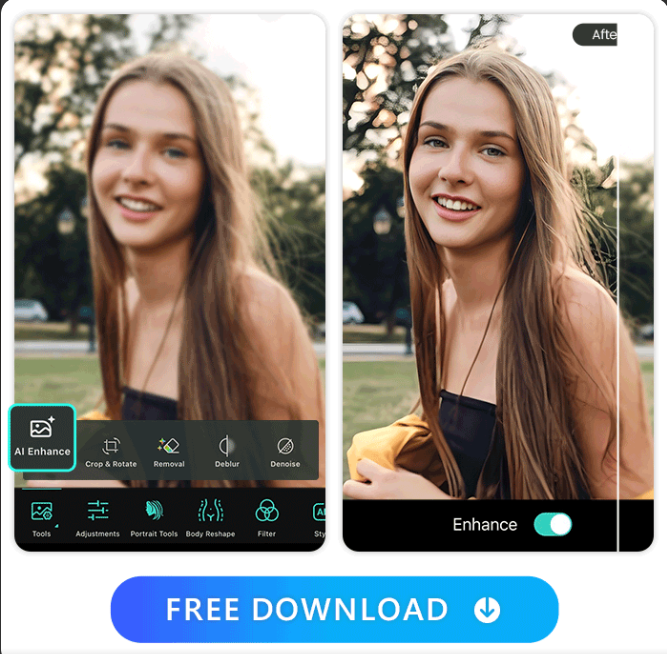
| Name | Remini |
| Publisher | Bending spoon |
| Size | 150mb |
| Downloads | 100M+ |
Conclusion
Remini is far more than a casual photo filter app. In professional hands, it becomes a sophisticated AI-powered toolkit capable of transforming ordinary images into polished, high-quality visual assets. From restoring family archives and enhancing corporate headshots to upscaling eCommerce product photography and improving real estate listings, Remini’s applications span virtually every visual industry.
The key to using Remini professionally is approaching it with intentionality: selecting the right enhancement mode, integrating it into a broader editing workflow, quality-checking every output, and communicating transparently with clients about the tools you use.
Master these principles, and Remini becomes one of the most efficient and valuable tools in your professional creative toolkit — delivering quality that once required hours of manual editing, in a matter of seconds.
How to Use Remini Professionally: The Complete Guide to AI-Powered Photo Enhancement 2026How to Use Remini Professionally: The Complete Guide to AI-Powered Photo Enhancement 2026How to Use Remini Professionally: The Complete Guide to AI-Powered Photo Enhancement 2026How to Use Remini Professionally: The Complete Guide to AI-Powered Photo Enhancement 2026How to Use Remini Professionally: The Complete Guide to AI-Powered Photo Enhancement 2026How to Use Remini Professionally: The Complete Guide to AI-Powered Photo Enhancement 2026How to Use Remini Professionally: The Complete Guide to AI-Powered Photo Enhancement 2026How to Use Remini Professionally: The Complete Guide to AI-Powered Photo Enhancement 2026How to Use Remini Professionally: The Complete Guide to AI-Powered Photo Enhancement 2026How to Use Remini Professionally: The Complete Guide to AI-Powered Photo Enhancement 2026How to Use Remini Professionally: The Complete Guide to AI-Powered Photo Enhancement 2026How to Use Remini Professionally: The Complete Guide to AI-Powered Photo Enhancement 2026How to Use Remini Professionally: The Complete Guide to AI-Powered Photo Enhancement 2026How to Use Remini Professionally: The Complete Guide to AI-Powered Photo Enhancement 2026How to Use Remini Professionally: The Complete Guide to AI-Powered Photo Enhancement 2026How to Use Remini Professionally: The Complete Guide to AI-Powered Photo Enhancement 2026
How to Use Remini Professionally: The Complete Guide to AI-Powered Photo Enhancement 2026How to Use Remini Professionally: The Complete Guide to AI-Powered Photo Enhancement 2026How to Use Remini Professionally: The Complete Guide to AI-Powered Photo Enhancement 2026How to Use Remini Professionally: The Complete Guide to AI-Powered Photo Enhancement 2026How to Use Remini Professionally: The Complete Guide to AI-Powered Photo Enhancement 2026How to Use Remini Professionally: The Complete Guide to AI-Powered Photo Enhancement 2026How to Use Remini Professionally: The Complete Guide to AI-Powered Photo Enhancement 2026How to Use Remini Professionally: The Complete Guide to AI-Powered Photo Enhancement 2026



![picture enhancer software free, picture hd enhancer free, pixel up app, real photo enhancer, refine picture, remini - ai photo enhancer, remini age progression, remini ai generator, remini al photo, remini free mod apk, remini mod apk 2024, remini mod apk pro, remini photo editor, remini photo enhancer online, remini professional headshot, remini скачать, remini's, remini.com, remiweb, remy ai, rimini ai, samsung photo enhancer, smooth picture ai, upgrade photo, برنامج توضيح الصور, دانلود رمینی مود شده, download remini mod apk, download remini mod apk 1.5 7 premium unlocked, mod remini apk, remini - ai photo enhancer mod apk, remini apk mod download, remini apk mod premium, remini app mod apk, remini hack mod apk, remini latest mod apk, remini mod apk download, remini mod apk for pc, remini mod apk latest version, remini mod apk no ads, remini mod apk old version, remini mod apk premium unlocked, remini mod apk unlimited pro cards, remini mod pro apk, remini old version 1.7.4 mod apk, remini old version mod apk, remini photo enhancer mod apk, remini premium mod apk, remini pro apk mod, remini pro apk mod premium desbloqueado, remini pro mod apk download, remini pro mod apk full unlocked, remini pro mod apk latest version, remini pro mod apk old version, remini pro mod apk unlimited pro cards, remini video enhancer mod apk, remini video enhancer pro mod apk, apk remini mod, app remini mod apk, download apk remini mod, download remini premium mod apk, download remini video enhancer mod apk, mod apk remini, remini ai photo enhancer pro mod apk, remini apk + mod, remini apk mod old version, remini apk mod pro, remini apk premium mod, remini apk pro mod, remini gold mod apk, remini latest version mod apk, remini mod apk 2023, remini mod apk 64 bit, remini mod apk for ios, remini mod apk ios, remini mod apk iphone, remini mod apk premium, remini mod apk telegram, remini mod apk terbaru, remini mod apk unlimited pro, remini mod apk unlimited pro cards latest version, remini mod apk unlocked, remini mod apk video enhancer, remini mod premium apk, remini photo and video enhancer mod apk, remini photo enhancer apk mod, remini premium apk mod, remini premium mod apk unlimited pro cards, remini pro apk mod 1.7 0 premium desbloqueado, remini pro apk mod 17 0 premium desbloqueado, remini pro mod apk full unlocked 2024, remini pro mod apk ios, remini pro mod apk latest version 2024, remini pro mod apk no ads, remini pro mod apk video enhancer unlocked, remini pro premium mod apk, remini pro video enhancer mod apk, remini unlimited mod apk, remini video enhancer mod apk premium unlocked, remini video mod apk, remini+mod+apk+for+pc, video remini mod apk, apk remini pro mod, download apk mod remini, download remini apk mod, download remini mod apk old version, download remini mod apk terbaru 2023, mint ai photo enhancer remini mod apk, modded remini apk, picma - photo enhancer remini mod apk, remini - photo enhancer mod apk, remini .mod apk, remini 1.2 1 mod apk, remini 1.2 8 mod apk, remini 1.2.6 mod apk, remini 1.3.11 mod apk, remini 1.3.7 mod apk, remini 1.4 2 apk mod, remini 1.4.2 mod apk, remini 1.5 1 mod apk, remini 1.5 6 mod apk, remini 1.5.1 mod apk, remini 1.5.9 mod apk, remini 1.6.1 mod apk, remini 1.7 1 mod apk, remini 1.7 5 mod apk, remini 1.7.1 mod apk, remini 1.7.2 mod apk, remini 1.7.4 mod apk, remini 1.7.5 mod apk, remini 2.3.2 mod apk, remini 2022 mod apk, remini 3.7.319 mod apk, remini 3.8.4 mod apk, remini ads free mod apk, remini ai avatar mod apk, remini ai avatar mod apk download, remini ai video enhancer mod apk, remini apk full mod, remini apk mod 2021, remini apk moded, remini app apk mod download, remini download apk mod, remini enhance plus mod apk, remini enhance video mod apk, remini full mod apk, remini full unlocked mod apk, remini hack mod apk download, remini mod 1.7.5 apk, remini mod apk 1.3.10, remini mod apk 1.3.11, remini mod apk 1.3.3, remini mod apk 1.5.4, remini mod apk 1.6.2, remini mod apk 1.6.4, remini mod apk 1.6.5, remini mod apk 1.7.4, remini mod apk 1.7.4 premium unlocked, remini mod apk 1.7.5, remini mod apk 2020, remini mod apk 2021, remini mod apk 2022, remini mod apk 2025, remini mod apk 3.7, remini mod apk 3.7.307, remini mod apk 3.7.319, remini mod apk ai avatar, remini mod apk april 2023, remini mod apk download no ads, remini mod apk download old version, remini mod apk for video, remini mod apk latest version 2021, remini mod apk latest version 2023, remini mod apk no ads premium unlocked, remini mod apk no ads unlimited, remini mod apk no sign in, remini mod apk no watermark, remini mod apk old, remini mod apk pc, remini mod apk premium no ads, remini mod apk pro card, remini mod apk procard, remini mod apk revdl, remini mod apk tanpa iklan, remini mod apk unlimited, remini mod apk unlimited credit, remini mod apk unlimited credit 2021, remini mod apk unlimited credits 2021, remini mod apk unlimited pro cards no ads, photo clarity app, photo clear editor, photo editor clear, photo editor high resolution, photo enchaner, photo enhacner, photo enhance app, photo enhanced ai, photo enhancement online, photo enhancement software free, photo enhancer free no watermark, photo enhancer online for free, photo enhaner, photo enhnacer, photo enjancer, photo remaster, photo upgrade, photo wnhancer, photos enhance ai, pic clear ai, pic enhancer ai, pic resolution enhancer, picsart ai image enhancer, picture enhance ai, picture enhancement app, picture enhancement software free, free_aai_photo_enhancement free_ai_photo_enhancer_app free_app_for_ai_pictures free_app_to_increase_picture_resolution free_enhance_image free_number_unlimited_credit_mod_apk free_photo_enhancement_apps free_photo_enhancer_for_android full_photo_enhancer google_enhancer_photo google_photo_войти graphics improver hd ai image_cleaning_software image_clear_ai image_ehancer image_enahncer image_enhancer_for_free image_enhancer image improvement image improver ai image_inhance image_inhanser image_quality_booster improve_image_ai improve_pictures improve_the_photo_quality inhance_photo_quality low quality image enhancer make_a_photo_more_hd make_better_quality make_hd_photos make_photo_more_hd make_photos_better_quality make_photos_hd_free make_photos_more_hd make_pictures_better moodapk photo_ai_enhancer_free photo_ai_trial photo_app_ai_photo_enhancer ai image rater, ai kid generator remini, ai make better photo, ai photo engancer, ai photo enhancer hd, ai photo face enhancer, ai photo hd maker, ai photo high resolution, ai photo upgrade, ai phots, ai picture rater, ai pohoto, ai premium apk, ai premium mod apk, ai remaster image, ai selfie enhancer, ai-image-enhancer, all app premium mod apk, all photo enhancer, apk ai mod, apk mod.vip, apk mods premium, apkmof, apkpng online, apks mod, app bildbearbeitung, app enhancer, app for clearing blurry pictures, app for making blurry pictures clear, app remini ai, app that clears blurry pictures, app that enhances photo quality, app to improve picture quality, apps for increasing image quality, apps for making pictures clearer, apps that make your photos look better, apps to enhance photos free, apps to enhance picture quality, apps to focus pictures, apps to make a picture clearer, apps to make pictures better quality, apps to make your photos look better, beloved app cost, best ai app for pictures, best photo ai enhancer, camera enhancer, can i enhance a photo quality, clarity enhancer ai, clear photo editor, clear photo enhancer, clear picture website, document picture enhancer, ehancer, enchance photo free, enchance pic, enchane photo, enhance a picture quality, enhance an image online, enhance by ai, enhance edit, enhance editor, enhance ia, enhance iamge, enhance photo app, enhance photo clarity, enhance photo editor, enhance photo hd, enhance photo without watermark, enhance photo, enhance photography, enhance pics online, enhance the quality of picture, enhance this image, enhance your photo, enhanced photo online, enhanced photo online free, enhanceimage, enhaner, face enhance ai free, face enhancement, Here’s the updated list with no numbers or dots, just commas at the end: Here’s the new list with each keyword on a new line: enhancer.com, enhence photo, exchange photo quality, face enhancer app, face enhancer online free, free ai photo enhance, free face enhancer, free online image enhance, gets mod apk, google photo enhancer, google photos mod apk premium unlocked, hd ai photo, high quality image editor, high resolution maker, how to change photos on remini, how to make photos hd, ia enhance image, image clearer app, image enhancer ia, image enhanser, imge enhancer, improve images, improve photos with ai, lite apk mod, make face clear ai, make me look better ai, make photos high quality, mod apk premium, mod apk premium unlocked, ogaalkaab app, online image enhancement, phot enhancer, photo ehancer, photo enchance, photo enhancer free hd, photo enhancher, photo enhancment, photo in enhancer, photo quality enhance, photo quality enhancer free online, photoapp - ai photo enhancer, photoenhacer, photograph enhancer, photos rimini, pic quality enhancer free, pic quality improver, picture enhancer online, pro play games photos, pro weekly app, q11 photography photos, r/rimming, remaster app, remaster blurry photos, remaster photo, remaster photo android, rememi, remini app, remini ai baby, remini ai headshot, remini apk download new version, remini app cost, remini app download apk, remini app reviews, remini download, remini photo app, remini photos, remini professional, remini vs, reminie, reminiscence photography, reminni, resolution enhancer photo, rimi app, rimini apk download premium unlocked, rmini, upgrade picture ai, videoenhancer.media.oi, what does ap mean in anime, what is the best ai photo enhancer, what's remini, تنزيل ريميني, دانلود remini کرک شده, رمینی آنلاک شده, ریمنی ریمینی, ai bot photo editor, ai camera enhancer, ai detail enhancer, ai enhance headshot, ai enhance image hd, ai enhancers, ai face photo enhancer, ai image enhancers, ai image hd enhancer mod .apk, mod pak, nod apk, online image quality enhancer, online photo quality enhancer, paidapk, pertajam gambar, photo clean, photo enhancement app, photo enhancing ai, photo enhanser, photo quality enhancer app, photo rater app, photoenhancer ai, pic rating app, picsart ai enhancer, picture clearer app, picture enhancement software, picture enhancing programs, picture enhancing software, picture of a scratched google play card, picture quality enhancer online, premium mod apk latest version, premium mod apks, q pot international, quality enchaner, quality image maker, quality inhancer, ramini ai, remaining ai, remaster image, remaster photos, remaster picture, remimi ai, remin., remin], remini - ai photo editor, remini ai photos, remini ai web, remini app free trial, remini cancel subscription, remini cost, remini premium apk, remini مود شده, remini.web, reminiapp, remy photo, remy photos, resolution booster, rimi ri, rimini., rimni, rrmini, splice price increase, unlimited pro apk, yap maps, ремини скачать, دانلود remini pro مود شده, دانلود remini مود شده, محسن الصور, ai enchance photo, ai enhance face, ai enhance photos free, ai enhancing photos, ai image engancer, ai image enhancer software, ai image perfector, ai inhance image, ai make quality better, ai photo editor hd quality, ai photo enhancer reviews, ai photos app, ai remini, ai to enhance image, apk mod vip, app that clears up blurry photos, app to enhance pictures, app to make photo clear, apps that enhance photo quality, apps to make blurry pictures clear, apps to make pictures clearer, best ai apps for photos, best photo enhancer app for android, best photo enhancing app, better quality images, bin ai image generator, blur photo enhancer, clear pic editor, download apk pro, enchance image online, enchance images, engance image, enhance photo online, enhacer, enhance blurry photo app, enhance foto, enhance image., enhance my image ai, enhance photo ai free, enhance photo for free, enhance photo for free online, enhance photos ai, enhance pic ai, enhanced image online, enhancement ai **is remini photo enhancer safe, is remini safe, make a picture high quality, make image look better, make my photo hd, make picture quality better, making photos high resolution, media on mod apk, mod apk downloads, penjernih foto, photo ai, photo en, photo enhacer, photo enhacer free, photo enhance online, photo enhancer app for iphone, photo enhancing, photo enhancing apps, photo improvement, photo improver software, photoenchancer, photos quality increase, pic clear, picture ai enhance, picture clarity, picture clearing app, picture enhacer, picture enhancement free, picture inhancer, premium apk download, premium download apk, pro apk, reimini, remini ai app, remini ai login, remini ai review, remini desktop, remini enhance, remini free app, remini mod, remini plan, remini., remini.me, reminia, reminiai, remini reviews, reminute, remni ai, remni app, retouche photo, rimini software, rimmi, rimmini, unlocked apps, what is remini app, ремини, برنامه رمینی با لینک مستقیم, رمینی مود شده, رمینی نسخه قدیمی, 5 dollar apple pay pic, a.i image enhancer, a.i picture editor, ai baby generator remini, ai enhace image, ai enhance pictures, ai free photo enhancer, ai image enhacer, ai image improver free, ai improve image, ai phoro, ai photo application, ai photo editting, ai photo enhance free, ai to enhance photos, ameliorer image, apk .mod, apk hackeado, apk mood, apk/mod, app that clears up photos, app to clear photos, app to fix blurry photos free, app to sharpen photos, apps that make pictures clear, apps that make your photos look professional, apps to make a picture more clear, apps to make photos clearer, apps to make photos more clear, best ai photo enhancer free, best apps to enhance photos, best picture enhancer app, clear photo online, ehance image, enchance image ai, enchance photos, enchancer, enhace photos, enhance a photo free, enhance face ai, enhance photos for free, enhance pictures free, enhanced photos, enhancement photo, enhancer face, enhancer tool, enhancing photo, enhancing photo quality, enhancing pictures, free ai apps for pictures, free photo enhancing software, free picture enhancer online, free program to enhance photos, high res photo editor, high resolution editor, high resolution photo editor, high resolution picture editor, image clarity, image enchance, image enhacner, image enhancement program, image enhancer free ai, image enhancer., image hd maker, image quality enhancer ai, image remaster, improve a photo with ai, improve a picture, kara foto, make hd, make picture better, make your picture hd** enhancer ai, free photo ai enhancer, gemini photo editor, hd photo enhancer free, high quality image maker, high quality maker, high quality photo enhancer, image booster, image enchaner, image engancer, image enhacer free, image enhancement app, improve quality of a photo, low quality image generator, make pictures hd, make the photo hd, mediafıre premium apk, mix2vfx, mod. apk, photo ai application, photo clarity, photo clarity enhancer, photo clearing app, photo enhancement apps, photo enhancer for pc, photo enhancer, photo enhancing software, photo image enhancer, photo improve, photo improver online, photo inhancer, pic clear app, pic enhance online free, picsart enhancer, picture quality improver, pictures enhancer, quality enchance, quality enhancer photo, remening, remin i, remine pro, remini ai photo editor, remini baby ai, remini free trial, remini generated with ai app, remini gratis, remini photo, remini website, rimin, riminini, wala magic meaning, ريميني, a i image enhancer, a.i enhance image, ai app that makes pictures, ai enhance pic, ai enhanced photography, ai enhancer image, ai face enhancer online free, ai filter generator, ai filter online, ai hd, ai hd foto, ai image enchance, ai photo clear, ai photo enhancer mod apk, ai smooth image, al photos, al pictures, apk modi, apk modly, apk premium unlocked, app that makes blurry pictures clear, app that makes photos clear, app that makes pictures not blurry, app to clear blurry pictures, app to increase image resolution, app to increase photo resolution, app to increase picture resolution, app to increase resolution of photos, app to make a blurry picture clear, app to make blurry pictures clear, app to make pictures not blurry, app.remini, apps for clear pictures, apps that clear up photos, apps that clear up pictures, apps that sharpen photos, apps to clear blurry photos, apps to clear up blurry photos, apps to clear up blurry pictures, apps to clear up pictures, apps to make pictures clear, apps to make pictures less blurry, apps to sharpen photos, auto picture enhancer, best ai photo cleaner, best app to enhance photo quality, best photo enhancer app free, better picture ai, download apk premium, editor de fotos borrosas, enchant image, enhance a photo online, enhance a photo with ai. remini, image enhancer, photo enhancer, ai image enhancer, ai photo enhancer, enhancer image, image quality enhancer, photo enhancer ai, photo quality enhancer, picture enhancer, rimini, enhance image quality, ai enhance image, ai image enhancement, apk mod, enhance photo, photo enhancer free, picture quality enhancer, enhance image, enhancer pic, free image enhancer, image enhancer free, increase image quality, free photo enhancer, improve quality of photo, increase the quality of image, quality enhancer, remine, remini ai, enhance a pic, enhance photo quality, improve the quality of image, remin, enhanced pic, enhancer, image enhance, modapk, ai image enhance, ai photo enhancer free, best ai photo editor, enhance image quality free, enhance photo quality online free, free ai photo enhancer, free photo enhancer online, photo enhancer online free, pic enhancer, remni, video enhancer free, ai enhancement image, artificial intelligence photo enhancer, free image enhancer online, image enhancer ai, online photo enhancer, ai enhance photo, ai photo app, ai pic enhancer, enhance images, enhance photo free, free ai image enhancer, free picture enhancer, image enchancer, image quality improver, improve quality of image, increase clarity of image, make picture better quality, online image enhancer, photo enhance free, photo quality enhancer free, quality improver, remini mod apk, ai photo enhancer online free, ai quality enhancer, clear photo, enhance a photo, enhance photo online free, enhance photos, enhancer photo free, hd image, image upscale free, make photo hd, photo enhancement, photo enhancer for free, photo enhancer free online, picture enhance free, picture enhancer free online, picture enhancing, remani, remeni, ai image quality enhancer, better quality image, create hd photo, enhance image online, remini, image enhancer, photo enhancer, ai image enhancer, ai photo enhancer, enhancer image, image quality enhancer, photo enhancer ai, photo quality enhancer, picture enhancer, rimini, enhance image quality, ai enhance image, ai image enhancement, apk mod, enhance photo, photo enhancer free, picture quality enhancer, enhance image, enhancer pic, free image enhancer, image enhancer free, increase image quality, free photo enhancer, improve quality of photo, increase the quality of image, quality enhancer, remine, remini ai, enhance a pic, enhance photo quality, improve the quality of image, remin, enhanced pic, enhancer, image enhance, modapk, ai image enhance, ai photo enhancer free, best ai photo editor, enhance image quality free, enhance photo quality online free, free ai photo enhancer, free photo enhancer online, photo enhancer online free, photo quality enhancer online free, picture enhancer free, remini app, remini face swapper, remini web, ai picture enhancer, image enhancer online, photo enhancer online, pic enhancer, remni, video enhancer free, ai enhancement image, artificial intelligence photo enhancer, free image enhancer online, image enhancer ai, online photo enhancer, ai enhance photo, ai photo app, ai pic enhancer, enhance images, enhance photo free, free ai image enhancer, free picture enhancer, image enchancer, image quality improver, improve quality of image, increase clarity of image, make picture better quality, online image enhancer, photo enhance free, photo quality enhancer free, quality improver, remini mod apk, ai photo enhancer online free, ai quality enhancer, clear photo, enhance a photo, enhance photo online free, enhance photos, enhancer photo free, hd image, image upscale free, make photo hd, photo enhancement, photo enhancer for free, photo enhancer free online, picture enhance free, picture enhancer free online, picture enhancing, remani, remeni, ai image quality enhancer, better quality image, create hd photo, enhance image online, enhance image quality online free, enhance photo online, enhancer picture, free enhance photo, free photo enhancing, image inhancer, make picture high quality, online pic enhancer, pic quality enhancer, remimi, remini online, best photo enhancer app, better picture quality, clear pic, enchance image, enhance photos free, enhance pic, enhance pictures, enhancer photo, free enhancer photo, free image enhancing, free online image enhancer, free online photo enhancer, free photo-enhancer, hd photo enhancer, image enhancement free, improve photo quality, make image high quality, online photo enhancer free, photo improver, photoenhancer, picture enhancement, remini.ai, توضيح لصور, ai fhoto, ai image enhancing, ai photo enhance, enhance image ai, enhancing photos, free photo enhancement app, hd foto, image clarity enhancer, image enhance ai, image photo enhancer, image quality enhancer free, make hd picture, make picture hd, photo clear, photo enhancer hd, photo ia, photo quality increase, photo resolution increaser, picture quality, pixel enhancer, ramine, remini with python, rimioni, enhance photo quality free, enhance photo quality online, enhance pictures online free, enhance the picture quality, enhanced photo, free photo enhancer app, free picture enhance, how to enhance a picture, image improver, lites apk, online picture enhancer, photo enchancer, photo enhancer app, photo enhancer online free no watermark, photos enhancer, remini login, remini photo enhancer, rinimi, ultra sharp vpn extension for chrome download, ai enchance, ai enhance photos, apk mod download, artificial intelligence image enhancement, enchance photo, enhance a picture, enhance face in picgture, enhance image free, enhance img, enhance photo ai, free image enhancement, free picture enhancement, hd photo maker, hd photos maker, how to make blurry pictures clear app free, image enhancer online free, l remini, mod apk download, photo ai enhancer, photo hd enhancer, photo hd maker, picture enhancer online free, reemini, reminio, remini, enhance image quality, ai enhance image, ai image enhancement, apk mod, enhance photo, photo enhancer free, picture quality enhancer, enhance image, enhancer pic, free image enhancer, image enhancer free, increase image quality, free photo enhancer, improve quality of photo, increase the quality of image, quality enhancer, remine, remini ai, enhance a pic, enhance photo quality, improve the quality of image, remin, enhanced pic, enhancer, image enhance, modapk, ai image enhance, ai photo enhancer free, best ai photo editor, enhance image quality free, enhance photo quality online free, free ai photo enhancer, free photo enhancer online, photo enhancer online free, photo quality enhancer online free, picture enhancer free, remini app, remini face swapper, remini web, ai picture enhancer, image enhancer online, photo enhancer online, pic enhancer, remni, video enhancer free, ai enhancement image, artificial intelligence photo enhancer, free image enhancer online, image enhancer ai, online photo enhancer, ai enhance photo, ai photo app, ai pic enhancer, enhance images, enhance photo free, free ai image enhancer, free picture enhancer, image enchancer, image quality improver, improve quality of image, increase clarity of image, make picture better quality, online image enhancer, photo enhance free, photo quality enhancer free, enhance image quality, ai enhance image, ai image enhancement, apk mod, enhance photo, photo enhancer free, picture quality enhancer, enhance image, enhancer pic, free image enhancer, image enhancer free, increase image quality, free photo enhancer, improve quality of photo, increase the quality of image, quality enhancer, remine, remini ai, enhance a pic, enhance photo quality, improve the quality of image, remin, enhanced pic, enhancer, image enhance, modapk, ai image enhance, ai photo enhancer free, best ai photo editor, enhance image quality free, enhance photo quality online free, free ai photo enhancer, free photo enhancer online, photo enhancer online free, photo quality enhancer online free, picture enhancer free, remini app, remini face swapper, remini web, ai picture enhancer, image enhancer online, photo enhancer online, pic enhancer, remni, video enhancer free, ai enhancement image, artificial intelligence photo enhancer, free image enhancer online, image enhancer ai, online photo enhancer, ai enhance photo, ai photo app, ai pic enhancer, enhance images, enhance photo free, free ai image enhancer, free picture enhancer, image enchancer, image quality improver, improve quality of image, increase clarity of image, make picture better quality, online image enhancer, photo enhance free, photo quality enhancer free, quality improver, remini mod apk, ai photo enhancer online free, ai quality enhancer, clear photo, enhance a photo, enhance photo online free, enhance photos, enhancer photo free, hd image, image upscale free, make photo hd, photo enhancement, photo enhancer for free, photo enhancer free online, picture enhance free, picture enhancer free online, picture enhancing, remani, remeni, ai image quality enhancer, better quality image, create hd photo, enhance image online, enhance image quality online free, enhance photo online, enhancer picture, free enhance photo, free photo enhancing, image inhancer, make picture high quality, online pic enhancer, pic quality enhancer, remimi, remini online, best photo enhancer app, better picture quality, clear pic, enchance image, enhance photos free, enhance pic, enhance pictures, enhancer photo, free enhancer photo, free image enhancing, free online image enhancer, free online photo enhancer, free photo-enhancer, hd photo enhancer, image enhancement free, improve photo quality, make image high quality, online photo enhancer free, photo improver, photoenhancer, picture enhancement, remini.ai, توضيح لصور, ai fhoto, ai image enhancing, ai photo enhance, enhance image ai, enhancing photos, free photo enhancement app, hd foto, image clarity enhancer, image enhance ai, image photo enhancer, image quality enhancer free, make hd picture, make picture hd, photo clear, photo enhancer hd, photo ia, photo quality increase, photo resolution increaser, picture quality, pixel enhancer, Thought for a couple of seconds quality improver, remini mod apk, ai photo enhancer online free, ai quality enhancer, clear photo, enhance a photo, enhance photo online free, enhance photos, enhancer photo free, hd image, image upscale free, make photo hd, photo enhancement, photo enhancer for free, photo enhancer free online, picture enhance free, picture enhancer free online, picture enhancing, remani, remeni, ai image quality enhancer, better quality image, create hd photo, enhance image online, enhance image quality online free, enhance photo online, enhancer picture, free enhance photo, free photo enhancing, image inhancer, make picture high quality, online pic enhancer, pic quality enhancer, remimi, remini online, best photo enhancer app, better picture quality, clear pic, enchance image, enhance photos free, enhance pic, enhance pictures, enhancer photo, free enhancer photo, free image enhancing, free online image enhancer, free online photo enhancer, free photo-enhancer, hd photo enhancer, image enhancement free, improve photo quality, make image high quality, online photo enhancer free, photo improver, photoenhancer, picture enhancement, remini.ai, توضيح لصور, ai fhoto, ai image enhancing, ai photo enhance, enhance image ai, enhancing photos, free photo enhancement app, hd foto, image clarity enhancer, image enhance ai, image photo enhancer, image quality enhancer free, make hd picture, make picture hd, photo clear, photo enhancer hd, photo ia, photo quality increase, photo resolution increaser, picture quality, pixel enhancer, ramine, remini with python, rimioni, enhance photo quality free, enhance photo quality online, enhance pictures online free, enhance the picture quality, enhanced photo, free photo enhancer app, free picture enhance, how to enhance a picture, image improver, lites apk, online picture enhancer, photo enchancer, photo enhancer app, photo enhancer online free no watermark, photos enhancer, remini login, remini photo enhancer, rinimi, ultra sharp vpn extension for chrome download, ai enchance, ai enhance photos, apk mod download, artificial intelligence image enhancement, enchance photo, enhance a picture, enhance face in picgture, enhance image free, enhance img, enhance photo ai, free image enhancement, free picture enhancement, hd photo maker, hd photos maker, how to make blurry pictures clear app free, image enhancer online free, l remini, mod apk download, photo ai enhancer, photo hd enhancer, photo hd maker, picture enhancer online free, reemini, reminio, remini, best photo enhancement app, cancel remini subscription, clearly image, enhace photo, enhance app, enhance images online free, enhance photo resolution app, enhance photos online, enhance photos with ai, enhance picture free, enhance picture online free, enhance the photo quality, enhance ai image, enhance image software, enhance image, enhance images with ai, enhance photo free online, enhance pics free, enhance picture for free, enhance pictures with ai, enhance the quality of a photo, enhance the quality of image, enhanced image ai, enhancer photo ai, enhancing picture, enhancing tool, eremini, foto enchancer, free ai face enhancer, free image enhance, free image enhance online, free photo enhance, free photo enhancement software, free photo enhancer ai, google image enhancer, google images blurry, google picture enhancer, high definition app, higher photo, how to enhance pictures, ia image enhancer, iamge enhancer, image enchancer ai, image enhancement online, image enhencer, image quality enchancer, image wuality enhancer, image-enhancer, imagine enhancer, improve photo, improve photo resolution app, improve quality of a picture, increase photo resolution app, increase the quality, iphone photo enhancer,](https://myreminimod.com/wp-content/uploads/2025/05/ChatGPT-Image-May-3-2025-07_04_37-AM-1-768x768.png)