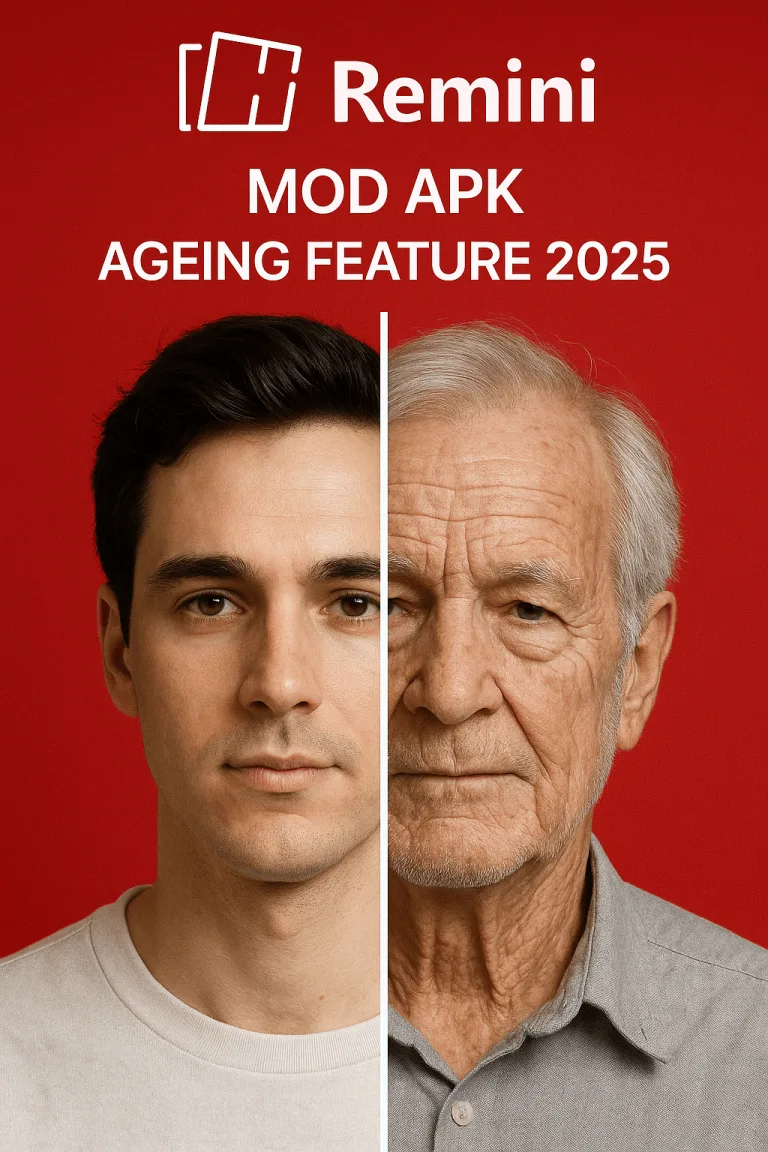
Mobile Photo Editing: Remini & Beyond
Mobile Photo Editing: Remini & Beyond
A practical walkthrough of the apps that actually transform your photos — no professional camera or Photoshop degree required.
Let me be honest with you — I was never the person who knew how to edit photos properly. I’d take a shot, slap a filter on it, and call it a day. Instagram’s built-in tools were my best friends, and anything beyond brightness and contrast felt like foreign territory. But somewhere along the way, I stumbled into the world of proper photo editing apps — and things changed. Fast.
If you’ve been hearing a lot about Remini lately, you’re not alone. The app has exploded in popularity, especially among people who have old, blurry, or damaged photos they want to bring back to life. But Remini is just one piece of a much bigger puzzle. No professional camera needed. No Photoshop degree required.
This article is a walkthrough of what these apps can do, how to use them, and a few honest tips I’ve picked up from actually using them — not just reading about them.
Before anything else, let’s clear up a common misconception: Remini is not a general-purpose photo editor. Remini specializes in AI-powered enhancement — particularly for blurry, faded, or damaged photos.
The core technology is a deep learning model trained on millions of images. Old family photos that looked faded and unclear often come out looking like they were shot yesterday.

- 1Download the app on iOS or Android. The free version gives you a limited number of enhancements per day.
- 2Tap “Enhance” and select a photo. Best results come from portraits where the face is at least partially visible.
- 3Wait 10–30 seconds for processing. You’ll see a before-and-after slider when it’s done.
- 4Save to gallery or share directly to social media. Done in under a minute.
💡 Pro Tips: Remini works best on portraits, not landscapes. The “Enhance” style looks the most natural. Always start with the best scan of an old photo you can get.
If Remini is the specialist, Adobe Lightroom Mobile is the all-rounder. The mobile app is free with a solid set of features — the same tool professional photographers use.
Lightroom gives you real, manual control. Pull Highlights down slightly and push Shadows up — this brings out detail in both bright and dark areas.

- 1Set Exposure so the image doesn’t feel too bright or too dark overall.
- 2Pull Highlights down and push Shadows up to recover detail on both ends.
- 3Adjust Color Temperature — warm it up or cool it down based on the mood you want.
- 4Try a subtle S-curve in the Tone Curve panel to add cinematic punch.
- 5Bump up Clarity slightly for sharpness, or reduce it for a softer look.
- 6Export at full resolution. Done.
💡 Pro Tip: The HSL panel lets you shift individual colors without touching the rest of the image. Deeper blue sky without affecting skin tones — done in seconds.
Snapseed is a Google product and one of the most capable completely free editing apps available. It doesn’t have the brand recognition of Lightroom, but it genuinely holds its own.
What makes Snapseed unique is its non-destructive editing approach. Every adjustment is stored as a “stack” — go back and change any edit at any time without starting over.
The Selective Adjust tool is a game-changer — tap any part of your photo and adjust just that area. The Healing tool removes distracting elements with one tap.
💡 Pro Tip: Use Selective Adjust to brighten individual faces in group photos without making the rest look overexposed.
VSCO is less about technical correction, more about aesthetic direction. Its film-inspired presets are among the best available.
Find a preset you love, tweak it slightly, and apply it consistently. Your feed will look curated and intentional without much effort.
Best for: Building a consistent visual identity. Great presets: A4, A6, HB1, HB2.
Beyond the viral filters, FaceApp has genuine portrait tools — smile enhancement, skin smoothing, and AI background replacement.
Note: FaceApp stores uploaded photos on its servers. Be selective about which images you upload.
Best for: Quick portrait touch-ups. Not recommended as a primary editing tool.
The Gap Has Never Been Smaller
Photo editing used to be gatekept behind expensive software and years of practice. That’s changed. Pick one or two apps, spend real time with them, and experiment. The gap between a phone photo and a great photo isn’t the camera anymore — it’s the fifteen minutes you spend after you take the shot.